
Visiting as a Group? Here’s What You Need to Know
Your group booking reserves places for everyone, but each student must register individually for one of these booked tickets in order to receive their QR code ticket.
Each student requires an individual QR code ticket for entry; this QR code is also scanned by exhibitors to allow bespoke information to reach the student following their discussions at the discovery event.
Your group booking reserves places for everyone, but each student must register individually for one of these booked tickets in order to receive their QR code ticket.
Once your group booking is complete, places are secured for your whole group.
Each student requires an individual QR code ticket for entry; this QR code is also scanned by exhibitors to allow bespoke information to reach the student following their discussions at the discovery event.
You’ll receive a confirmation email within 10 minutes. If it doesn’t arrive, contact events@ucas.ac.uk.
There are two ways to get students registered onto your group booking. This section covers the first method: sharing your registration link and group booking reference.
The second method — sending email invitations directly from ENet, including bulk uploads — is explained in the Step‑by‑Step Guides to Manage Your Booking section further down the page.
Share the registration link from your confirmation email with your students, along with your group booking reference (starts with UCASBKN…). Students can then follow the steps to join your group and generate their personalised ticket.
You can copy and share these instructions with your students (just add your booking reference):
Students should:
Visit https://www.ucas.com/dashboard to create or log in to their UCAS Hub account
(All students need a UCAS Hub account to register for an event.)
UCAS Discovery Events:
Find and select the event they are attending.
Advisers: You can find this in your confirmation email or in your ENet portal.
Note: Students will be prompted to register or log in to UCAS Hub. This is separate from their UCAS application. Encourage them to use a personal email address so they can continue receiving updates after leaving school.
Adviser Registration
Advisers also need to register so they can be scanned in on arrival. They follow the same steps as students, but do not need a UCAS Hub account.
Use your ENet portal to:
Track how many students have registered
Cancel students who are no longer attending
Adjust your ticket numbers as your group size changes
Access the event risk assessment
Download replacement tickets for students
View attendance and print a list for Gatsby benchmarking
See the section below for more information about accessing your group booking in ENet
There are two ways to access your ENet booking (portal):
1. Use the link in your booking confirmation email
Click the unique link sent to you when you made your group booking.
2. Log in via the ENet booking portal
Visit www.ucas.com/enet and enter your email address and password.
Note: This enet account is separate to your UCAS Adviser Portal, so you may have a different log in.
Once you log in, you’ll see your Session Details page (see image). This includes:
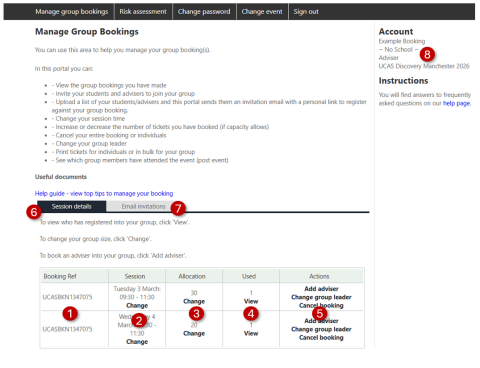
Booking Ref – your unique booking reference
Session – the time slot(s) you booked; you only need to book your arrival time
Allocation – number of tickets reserved for your group
Used – number of students/advisers who have registered
Actions – add/register an adviser, change your group leader, or cancel a session
Session Details tab – the page you’re currently viewing
Email Invitations tab – invite students and advisers to register for their ticket
School name & event name – shown at the top of the page
Risk Assessment – available to download 4 weeks before the event
Use the Email Invitations tab to invite students and advisers to register.
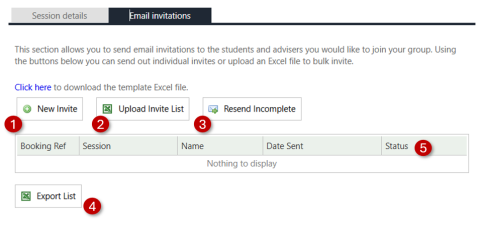
New invite
Add individuals manually
Each person receives an email with a personal registration link
Links expire after two weeks
Use Resend Incomplete to resend invitations to those who haven’t registered
Upload invite list (bulk upload)
Upload an Excel file - download the template file here.
The file must contain two columns with the required headings.
NOTE: If the file isn’t in the correct format, the upload won’t work. Please see image below for the desired format with exact column headings.

Upload students and advisers separately
Select whether you are uploading Adviser or Student
Choose the timeslot you are inviting them to
Once uploaded, contacts automatically receive an email with a personal registration link (expires after two weeks)
Other Tools
Resend Incomplete – resend invitations to anyone who hasn’t registered
Export List – download a list of invitees and their registration status
Waiting = invitation sent
Accepted = registration completed
Why do students have to have a UCAS Hub account?
All students need to have a UCAS Hub account to register for an event – to provide your students with a more personalised experience prior to attending the events and with their onward journey with UCAS. This can be done in advance or at the same time as registering for an event by visiting https://www.ucas.com/dashboard.
Why can't I select a timeslot when booking?
If a timeslot is greyed out, it is fully booked. Contact events@ucas.ac.uk to be added to the waiting list.
Why can’t I log into ENet?
Ensure you use the credentials from your booking confirmation email. Try clearing cache/cookies or contact events@ucas.ac.uk.
Where can I access a risk assessment?
Available four weeks before the event via the Risk Assessment tab in ENet.
How long can we stay at the event?
You may stay for the duration of your booked timeslot.
Where can we park?
Parking details are in the visitor guide on the event page under the Attend tab.
Can I download all tickets?
Yes, via the Used section in ENet. Individual downloads are recommended.
What are QR tickets used for?
To share details with exhibitors and receive course/open day information.
How do I see who attended?
Login to ENet, select Used → View, and check the Attended column.
Need help?
Email: events@ucas.ac.uk
Telephone: 01242 544 808